
# Comet Cash BTCPay Server web deployment
This guide explains how to deploy a managed BTCPay Server instance through Comet Cash (opens new window).
Comet Cash uses credits to allocate managed services. The Basic plan costs $30 per month and includes 1,000 credits. Each BTCPay Server instance requires 250 credits, so the Basic plan can run up to four BTCPay Server instances. If you also need Lightning, an LND node requires 350 credits. For example, the Basic plan can run two BTCPay Server instances and one LND node.
# 1. Log into Comet Cash
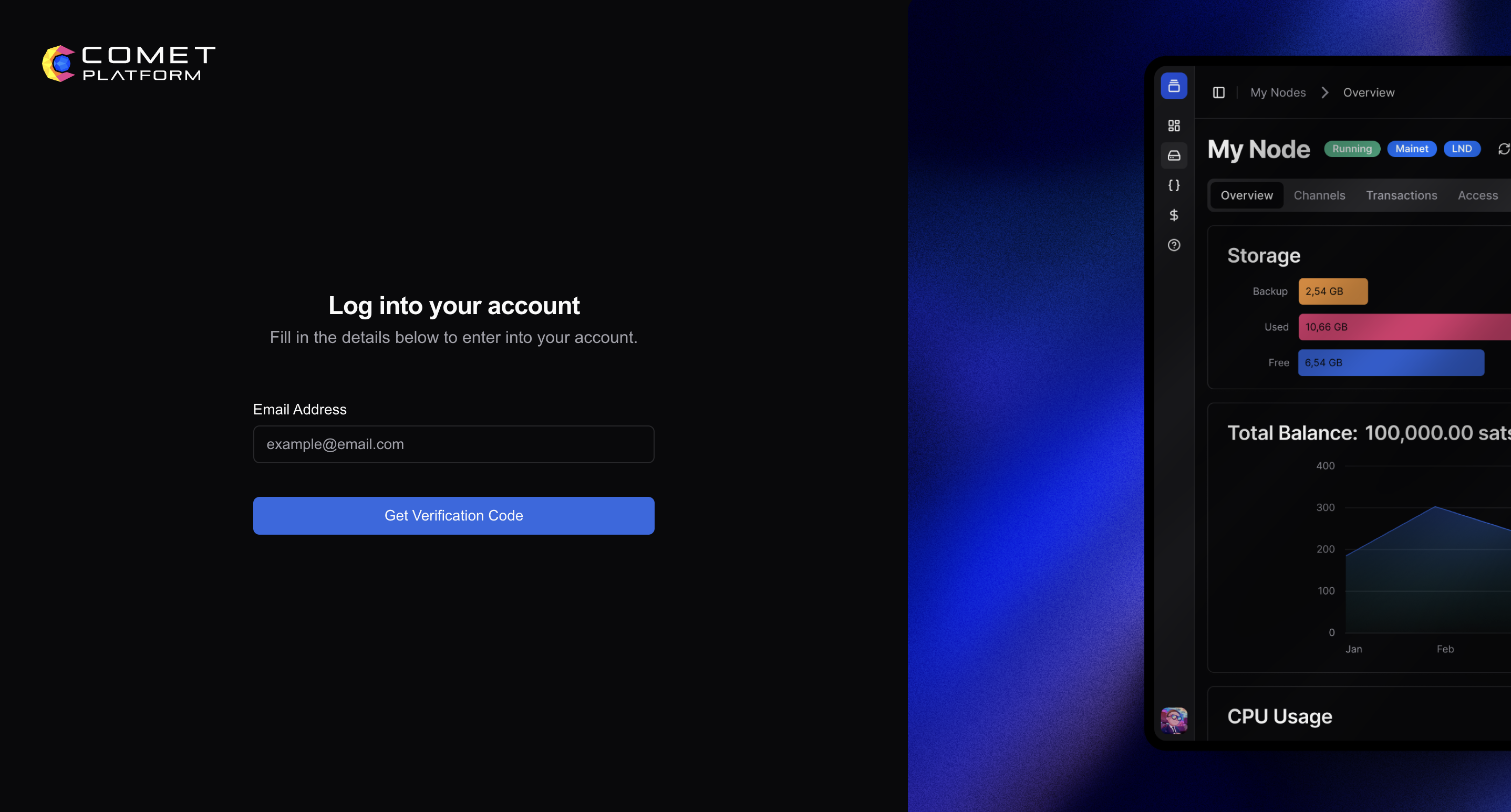
Go to the Comet Cash dashboard (opens new window), enter your email address, and click Get Verification Code. Use the verification code sent to your email address to finish logging in.
# 2. Activate your plan
Open the Billing page from the sidebar and activate the Basic plan or another plan that provides enough credits for the services you want to deploy.
# 3. Create a BTCPay Server node
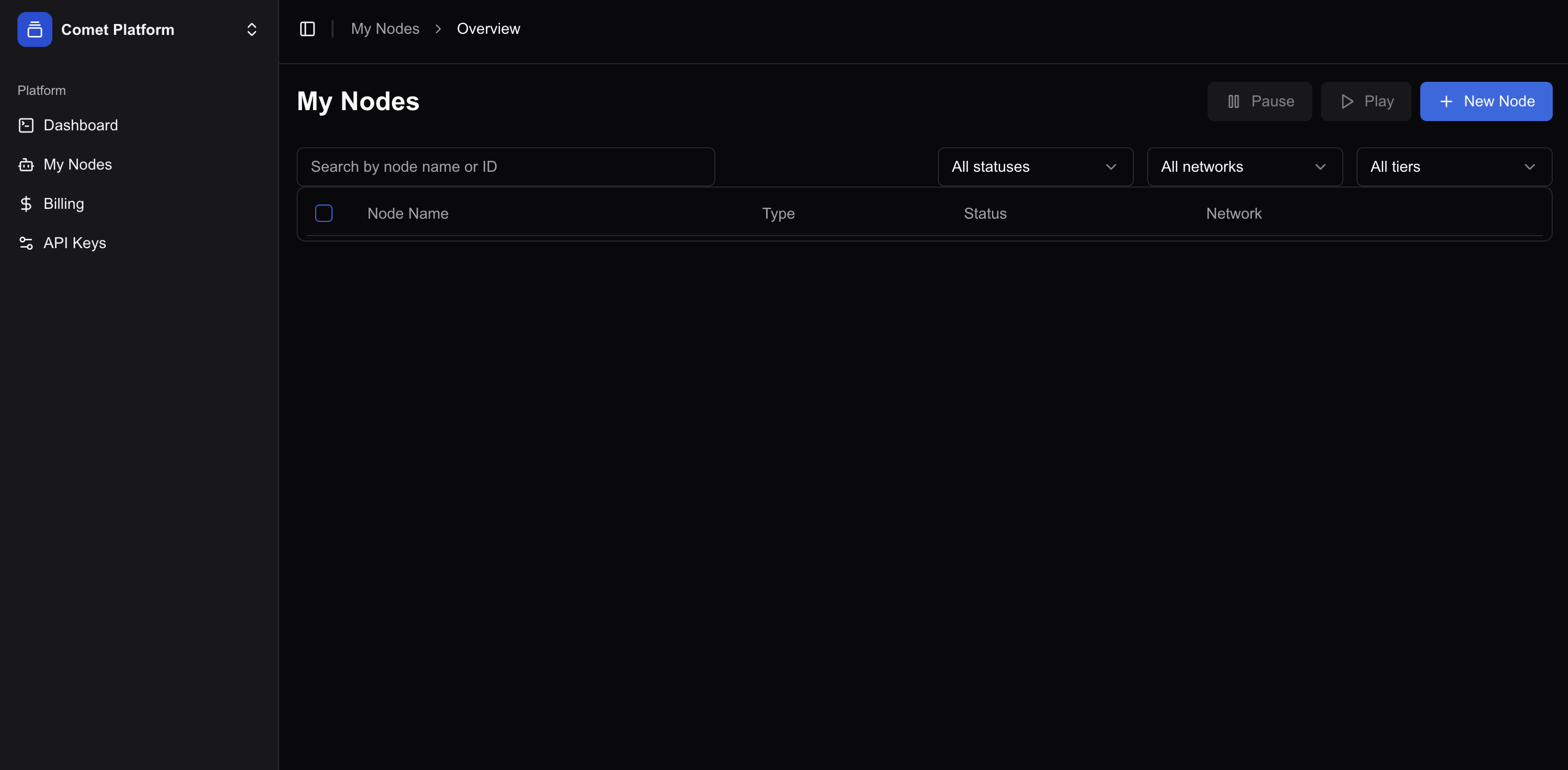
Open My Nodes from the sidebar, then click New Node.
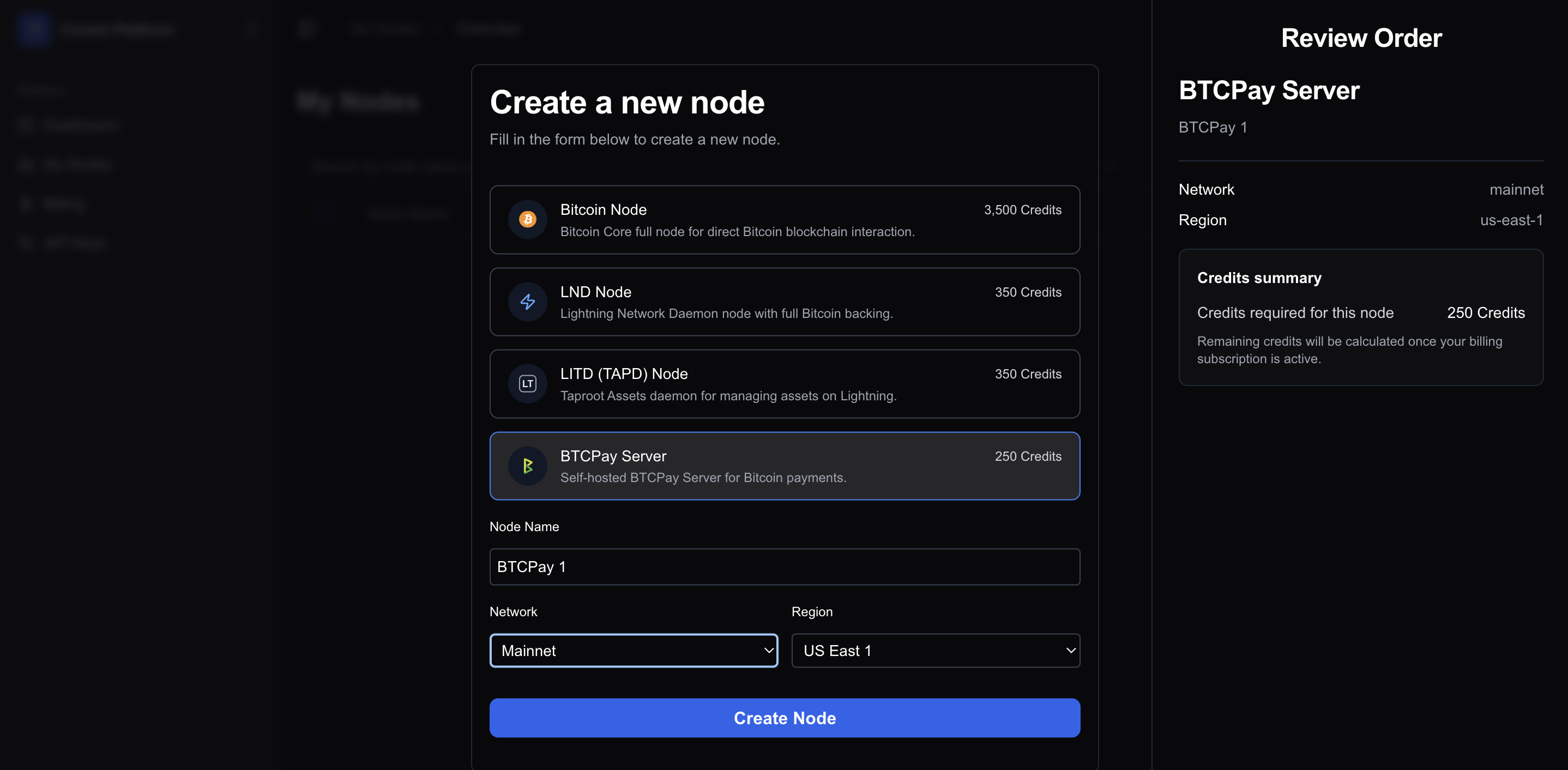
Select BTCPay Server, enter a node name, and choose the network and region for your instance. The order summary shows that the BTCPay Server instance requires 250 Credits. Click Create Node to start the deployment.
# 4. Open your BTCPay Server instance
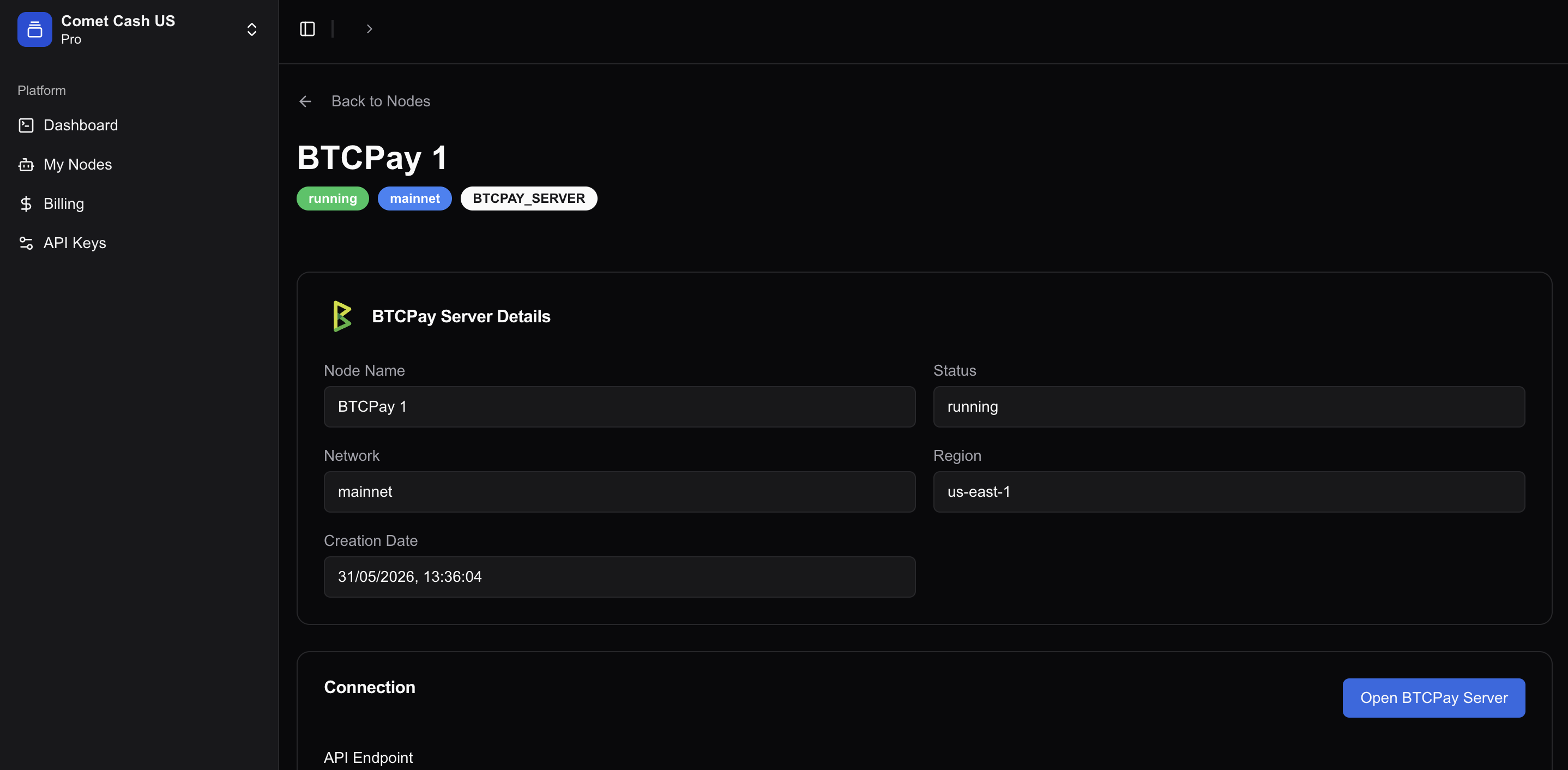
Wait until the node status changes to running. Open the node details page and click Open BTCPay Server.
# 5. Create your BTCPay Server account
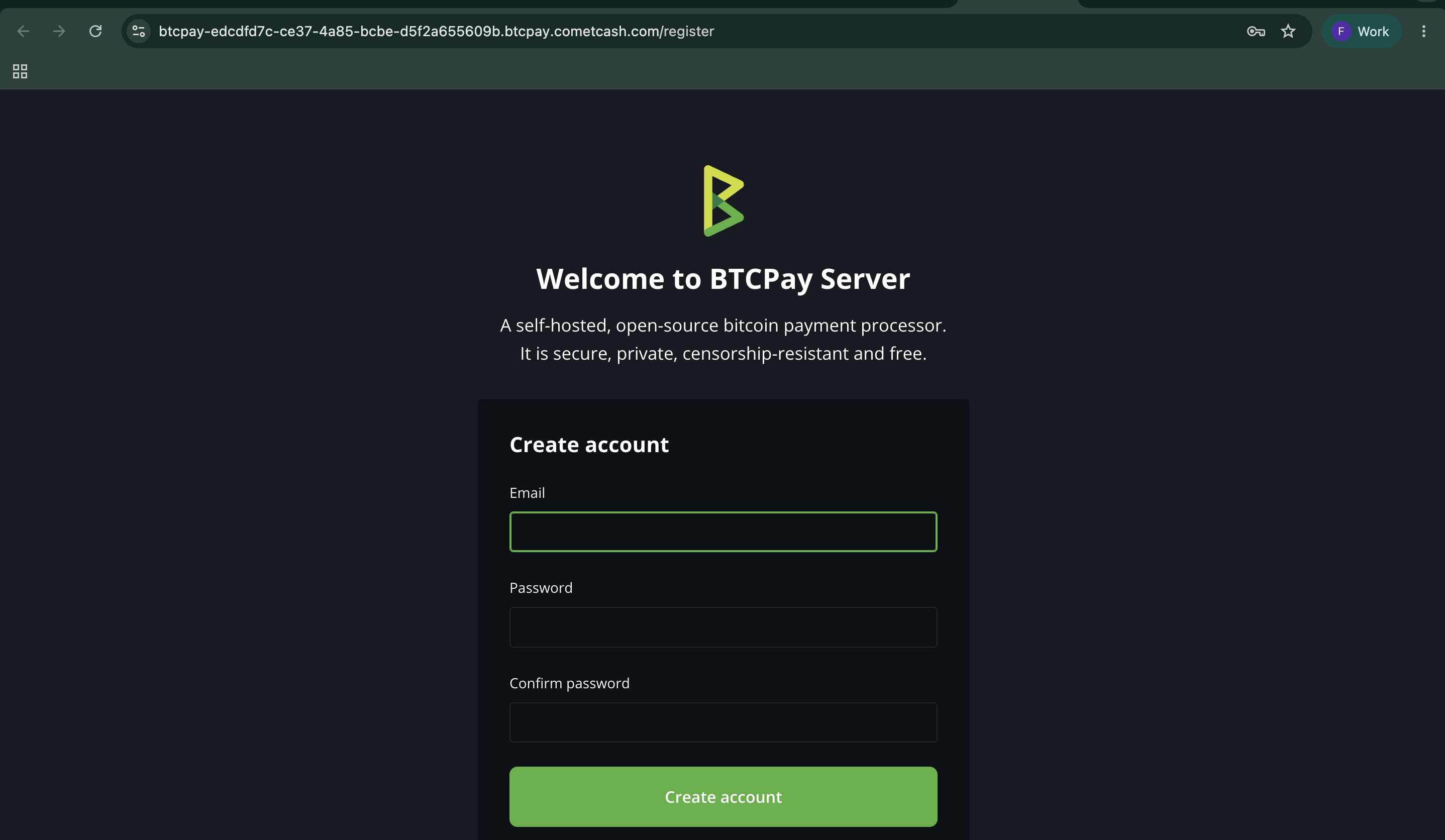
Your new instance opens the BTCPay Server registration page. Enter your email address and password, then click Create account. The first account registered on the instance is the administrator account.
You are now ready to create your first store. Continue with the account and store setup guide, then follow the wallet setup guide.
TIP
For questions about the Comet Cash dashboard, billing, or your managed deployment, contact Comet Cash support.