
# Lightning Network Setup options
On this page we will give you installation instructions and/or link to the relevant documentation. For a broader view about the Lightning Network and pros and cons of different options please take a look into our Lightning Network overview,
TIP
If you want to get started quickly and have no time to read this all, take a look at using SamRock Protocol to setup wallets auto-magically for you.
Jump right to the section you are interested in:
- Connecting a custodial Lightning Network wallet
- Using a swapping service
- Setting up your own Lightning Network node (fully self sovereign)
- Choosing the Lightning Network implementation
- Connecting your internal Lightning Node
- Connecting an external Lightning Node in BTCPay Server
- Getting started with BTCPay Server and LND
- Getting started with BTCPay Server and Core Lightning (CLN)
- Lightning node backup
- Manage liquidity via a Lightning Service Provider (LSP)
- Manage liquidity on your own (channel management)
# Connecting a custodial Lightning Network wallet
Custodial Lightning wallets allow you to accept Lightning payments without running your own node. As time of writing, BTCPay Server supports integration with:
# Blink
Blink (formerly Galoy) provides a custodial Lightning wallet with auto-conversion to stablecoins/fiat.
Setup guide: Blink BTCPay Server Plugin (opens new window)
# Strike
Strike offers Lightning payments with optional conversion to fiat currencies.
Setup guide: Strike BTCPay Server Plugin (opens new window)
For more background on custodial options and their pros/cons, see the custodial wallet section in the Lightning Network overview.
# Using a swapping service
Swapping services like Boltz allow you to receive Lightning payments that are automatically swapped to on-chain Bitcoin or Liquid Bitcoin (L-BTC).
# Boltz
Boltz uses atomic swaps to convert Lightning payments to Liquid BTC without taking custody of your funds.
Setup guide: Boltz BTCPay Plugin Documentation (opens new window)
For a quick automated setup with Aqua Wallet, check out the SamRock Protocol guide.
For more background on swapping services and their pros/cons, see the swapping service section in the Lightning Network overview.
# Setting up your own Lightning Network node (fully self sovereign)
This guide will show you how to set up your Lightning Network (LN) node in BTCPay Server and guide you through the basics.
BTCPay Server currently offers these implementations of the Lightning Network:
- LND (opens new window)
- Core Lightning (CLN) (opens new window) (formerly c-lightning)
- Eclair (opens new window)
DANGER
Before you proceed, please understand that running LN nodes is still a bit complicated. You need to ensure to have proper backups to be able to recover funds. Using the Lightning Network can put your money at risk. Do not use more than you can afford to lose.
Take time to familiarize yourself with the risks associated with using the Lightning Network.
If you choose to run the internal Lightning Node in BTCPay Server, consider:
- Any LN node operates at two levels: on-chain and off-chain.
- The LN implementation of choice will create an on-chain hot wallet that will be used to fund the off-chain payment channels.
- Make sure you back up the on-chain hot wallet seed (see the instructions below for the individual implementations).
- The seed in step #3 can only recover the on-chain funds, although it is necessary for the off-chain operation.
- Off-chain funds locked in channels cannot be backed up using a single-seed. Read the documentation issued by your LN implementation of choice.
- Off-chain recovery mechanisms are under active research and development. Erasing your BTCPay Server or unsafe/unsecure operation of the computing environment (e.g Filesystem corruption, compromised keys) can lead to permanent loss of funds.
- Use our backup script to regularly backup your BTCPay Server instance. This will help you recover your funds in case of a failure.
As the technology matures and develops, mechanisms for proper backup will be easier to implement in BTCPay Server. As of v1.0.3.138 (opens new window), LND is the only Lightning Network implementation that allows for lightning seed backups with BTCPay Server.
# Choosing the Lightning Network implementation
First, read here about using pruned Bitcoin nodes with Lightning Network implementations before deploying.
On the installation, you'll be able to choose the implementation.
For web-interface installations like on LunaNode, you can select the implementation from the drop-down menu. For other docker (opens new window) based deployment methods you need to:
sudo su -
cd btcpayserver-docker
export BTCPAYGEN_LIGHTNING="implementationgoeshere"
. ./btcpay-setup.sh -i
- For Core Lightning (CLN) use
export BTCPAYGEN_LIGHTNING="clightning" - For LND use
export BTCPAYGEN_LIGHTNING="lnd" - For Eclair use
export BTCPAYGEN_LIGHTNING="eclair"ANDexport BTCPAYGEN_ADDITIONAL_FRAGMENTS="opt-txindex"
Finally, to begin using LN, your blockchain needs to be fully synced.
# Connecting your internal Lightning Node
Irrespective of the LN implementation deployed, the process of connecting your internal Lightning Node in BTCPay Server is the same.
- Choose a store
- Go to "Lightning" > Select "Use internal node"
- Click "Save" > See "BTC Lightning node updated." message
- Go to "Public Node Info" > The node should appear "Online"
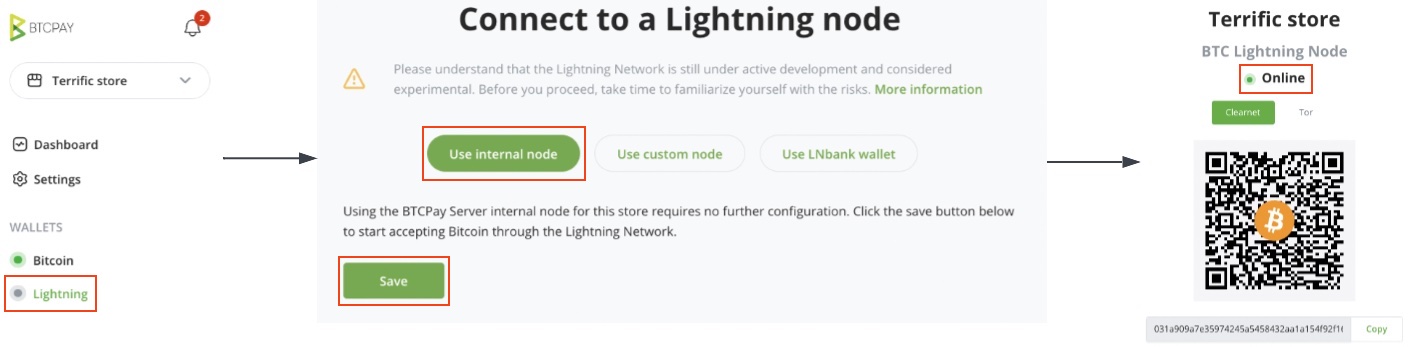
If the internal connection fails, confirm:
- The Bitcoin on-chain node is fully synchronized
- The Internal lightning node is "Enabled" under "Lightning" > "Settings" > "BTC Lightning Settings"
If you are unable to connect to your Lightning node, try restarting your server or reviewing our troubleshooting guide. You will not be able to accept lightning payments in your store until your Lightning node appears "Online". Try to test your Lightning connection by clicking the "Public Node Info" link.
# Connecting an external Lightning Node in BTCPay Server
BTCPay Server offers the option to connect to an external Lightning node. To configure it:
- Go to "Lightning" > Select "Use custom node" if there is no Lightning node configured.
- Go to "Lightning" > Select "Settings" > Select "Change connection" > Select "Use custom node" to modify an existing connection
- Add the configuration details matching the lightning implementation used, click on "Test connection"
- If successful, click "Save" > See "BTC Lightning node updated." message.
TIP
If you already use AlbyHub (opens new window) you can use the LNDHub connection support to connect your BTCPay wallet directly to your Alby account. As AlbyHub supports sub-accounts, you can use it similarly to the popular but discontinued LNBank plugin. Learn more on how to connect your BTCPay wallet to Alby (opens new window).
# Getting started with BTCPay Server and LND
# Control your LND using Ride The Lightning (RTL)
The easiest way to use LND implementation with BTCPay Server is to use the Ride The Lightning (opens new window) (RTL) service. A web user interface for the Lightning Network, RTL allows you to operate your node without leaving BTCPay Server, from your browser.
To initiate RTL in BTCPay Server, Go to Server Settings > Services > Ride The Lightning > See information.
# Control your LND using Zeus
For remote control of your LN node with your mobile phone, you can use ZEUS (opens new window)
# Control your LND via the command-line: lncli
LND can be accessed via the command-line using the shell script bitcoin-lncli.sh.
If you're on Docker, make sure you're in the Docker directory.
sudo su -
cd btcpayserver-docker
./bitcoin-lncli.sh $command
./bitcoin-lncli.sh getinfo #show info about the node
Run ./bitcoin-lncli.sh --help to see a full list of commands or check the full API documentation (opens new window).
# Getting started with BTCPay Server and Core Lightning (CLN)
# Control your CLN using Ride The Lightning (RTL)
The easiest way to use CLN implementation with BTCPay Server is to use the Ride The Lightning (opens new window) (RTL) service. A web user interface for the Lightning Network, RTL allows you to operate your node without leaving BTCPay Server, from your browser.
To initiate RTL in BTCPay Server, Go to Server Settings > Services > Ride The Lightning > See information.
# Control your CLN using Zeus
For remote control of your LN node with your mobile phone, you can use ZEUS (opens new window)
# Control your CLN via the command-line: lightning-cli
Similar to lncli, CLN can be accessed via the command-line using the shell script bitcoin-lightning-cli.sh.
If you're on Docker, make sure you're in the Docker directory.
sudo su -
cd btcpayserver-docker
./bitcoin-lightning-cli.sh $command
./bitcoin-lightning-cli.sh getinfo #show info about the node
Run ./bitcoin-lightning-cli.sh help to see a full list of commands or check the full API documentation (opens new window).
# Lightning node backup
Before you start transacting using your new lightning node, consider backing up the on-chain wallet. Steps:
for LND: storing a copy of the LND seed. Go to "Server Settings" > "Services" > "LND Seed Backup" and select "See information"
for CLN: storing a copy of the hsm_secret (opens new window)
The CLN $LIGHTNINGDIR is located in
/var/lib/docker/volumes/generated_clightning_bitcoin_datadir/_data/bitcoin
Acknowledge the limitations of off-chain payment channel backups and associated risks.
See the backup FAQ if you are running the BTCPay Server instance with Docker, and the Lightning Network FAQ for information on seed backups.
# Manage liquidity via a Lightning Service Provider (LSP)
You can manually receive inbound liquidity from LSPs like LNBIG (opens new window), Lightning Network+ (opens new window), Megalithic (opens new window), Zeus LSP (opens new window), LN Server (opens new window) or you can install the LSPS plugin (opens new window) from Megalith.
# Get inbound liquidity from LNBig.com
LNBig.com is a service that allows you to receive inbound liquidity. In this guide I will walk you through the whole process.
# LSPS plugin
Install the LSPS plugin (opens new window) from Megalith using this guide (opens new window) which supports multiple LSPs you can choose from.
Or if you prefer a video guide, check it out here:
# Manage liquidity on your own (channel management)
Getting your freshly deployed Lightning node ready to send and receive payments requires several steps. This section will guide you through funding your node, opening payment channels, and managing liquidity.
# Understanding payment channels and liquidity
Before diving into the technical steps, it's important to understand key concepts:
Overview of the process:
- The lightning node is deployed, enabled and its on-chain wallet is funded
- A peer is identified and the first payment channel is opened
- Inbound and outbound liquidity is acquired. The node is now able to send and receive
- Liquidity management, an ongoing process to maintain the capacity to send and receive
Key considerations:
- Choosing the channel partner: Consider opening the first channel to a well-connected peer with robust uptime. This will increase the chances for your payments to be routed and settled.
- Inbound vs outbound capacity: Outbound capacity allows nodes to send payments whereas inbound capacity allows nodes to receive payments. As a merchant using lightning, having inbound capacity is essential for customers to be able to pay you.
- Inbound capacity: A node adds inbound capacity by either spending sats from its local balance or having other nodes in the network open channels to it.
- Liquidity management: Maintaining the ability to send and receive is a continuous process where a balance between inbound vs outbound capacity has to be maintained across payment channels. This capacity distribution must be adjusted depending upon the use case of the node operator.
- Lightning Service Providers: LSPs offer paid third-party services that improve the ease of operating a lightning network node. Such services can be used to acquire inbound capacity or to automate the rebalancing process. See the LSP section for more details.
Additional resources for deeper understanding:
- Good peers on the LN (opens new window)
- Lightning node types (opens new window)
- What is Lightning liquidity? (opens new window)
- How to get inbound capacity? (opens new window)
- How to manage liquidity? (opens new window)
- Lightning service providers (LSP) (opens new window)
# Funding your on-chain wallet
Now that your lightning node is active, before opening lightning payment channels, you will need to fund the on-chain wallet.
The on-chain funding process can be performed in two ways:
Option 1: Via the Ride The Lightning (RTL) UI interface
- Select a "Store" and go to the "Lightning" section
- Under "Services", select "Ride The Lightning"
- In the RTL app, go to "On-chain", select "Receive" under the "On-chain Transactions" menu
- Select "Generate Address" and use it as the destination for the allocated funds
Option 2: Via the command-line
Using bitcoin-lncli.sh or bitcoin-lightning-cli.sh:
sudo su -
cd btcpayserver-docker
./bitcoin-lncli.sh newaddress p2wkh #for LND
./bitcoin-lightning-cli.sh newaddr  #for CLN
{
   "address" / "bech32": "bc1..........." #use this as the destination for the allocated funds
}
# Opening your first payment channel
Once your on-chain lightning node is funded, it's time to connect to other nodes on the network and open payment channels.
Using Ride The Lightning (RTL):
- In RTL, go to "Lightning" > "Peers/Channels"
- Click "Open Channel"
- Enter the peer's node URI (pubkey@host:port) or search for a well-connected node
- Specify the channel amount (in satoshis)
- Confirm and wait for the channel to be confirmed on-chain
Using the command-line:
For LND:
./bitcoin-lncli.sh connect <pubkey>@<host>:<port>
./bitcoin-lncli.sh openchannel <pubkey> <amount_in_satoshis>
For CLN:
./bitcoin-lightning-cli.sh connect <pubkey>@<host>:<port>
./bitcoin-lightning-cli.sh fundchannel <pubkey> <amount_in_satoshis>
TIP
As a merchant, you'll need inbound liquidity to receive payments. After opening a channel, your balance is 100% on your side (outbound only). To create inbound capacity, you can:
- Spend some sats through the channel
- Use a submarine swap service like Boltz (opens new window) to swap Lightning to on-chain BTC
- Use an LSP service to have channels opened to your node
- Join a liquidity swap pool like Lightning Network+ (opens new window)
# Managing ongoing liquidity
Lightning liquidity management is an ongoing process. As a merchant accepting payments, your channels will gradually fill up on your side, reducing your ability to receive more payments.
Strategies for maintaining inbound capacity:
- Submarine swaps: Use services like Boltz to swap Lightning funds back to on-chain BTC, freeing up inbound capacity
- Loop Out: If using LND, use Lightning Loop (opens new window) to move funds from Lightning to on-chain
- Spending: Use your Lightning balance to pay invoices, which naturally creates more inbound capacity
- Channel rebalancing: Use RTL or command-line tools to rebalance funds between channels. For automated rebalancing, Lightning Loop is supported in RTL
- LSP services: Use automated liquidity services that handle channel management for you (see LSP section)
The LSPS plugin (opens new window) can help automate some of these processes directly from BTCPay Server.